
Are you a photographer?See SnapDrive for photographers

The easiest way to choose photos — whatever the source

Even with hundreds of photos,
choosing stays easy.

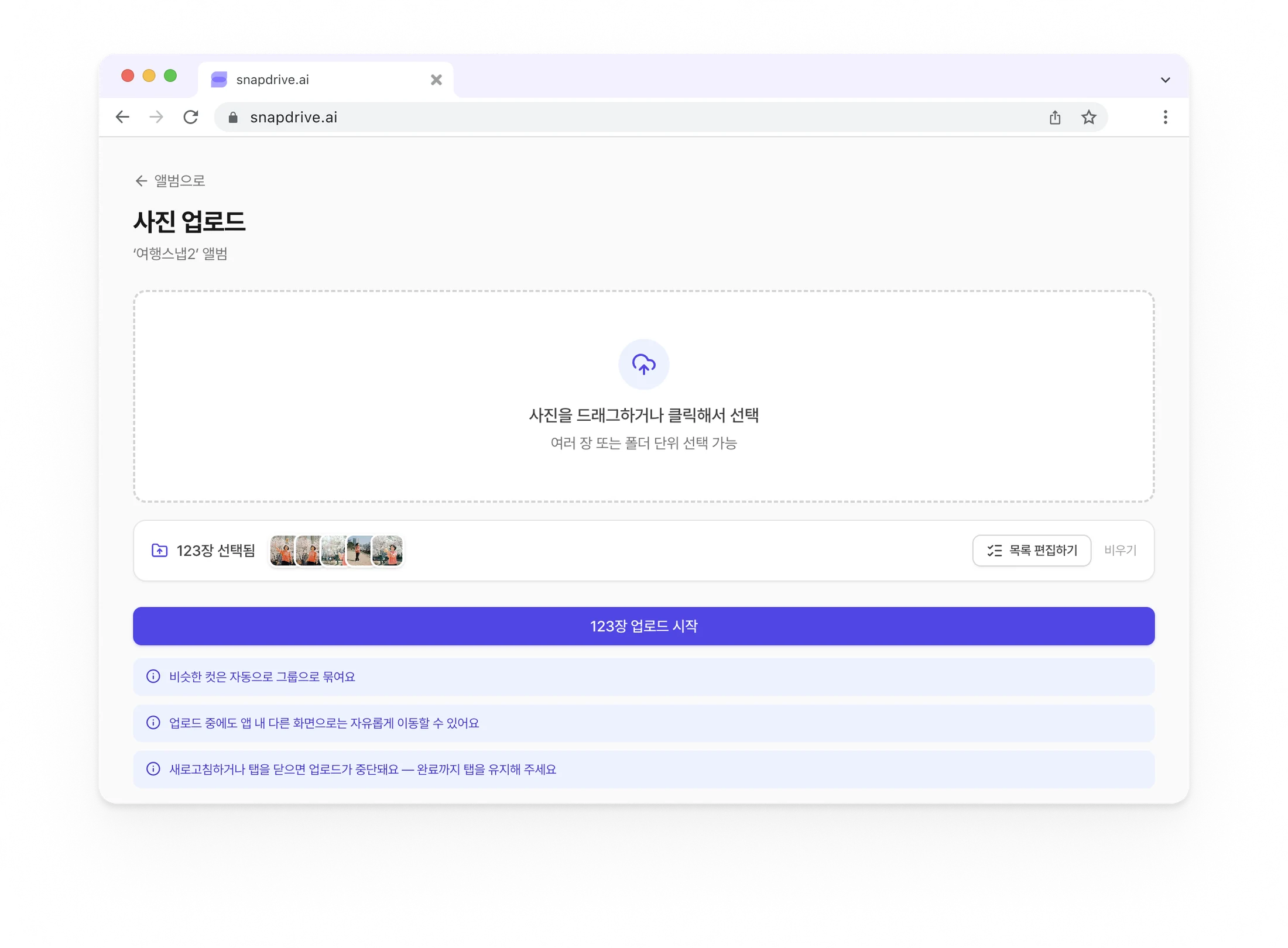
Received a SnapDrive album from your photographer? You can also upload your own photos.
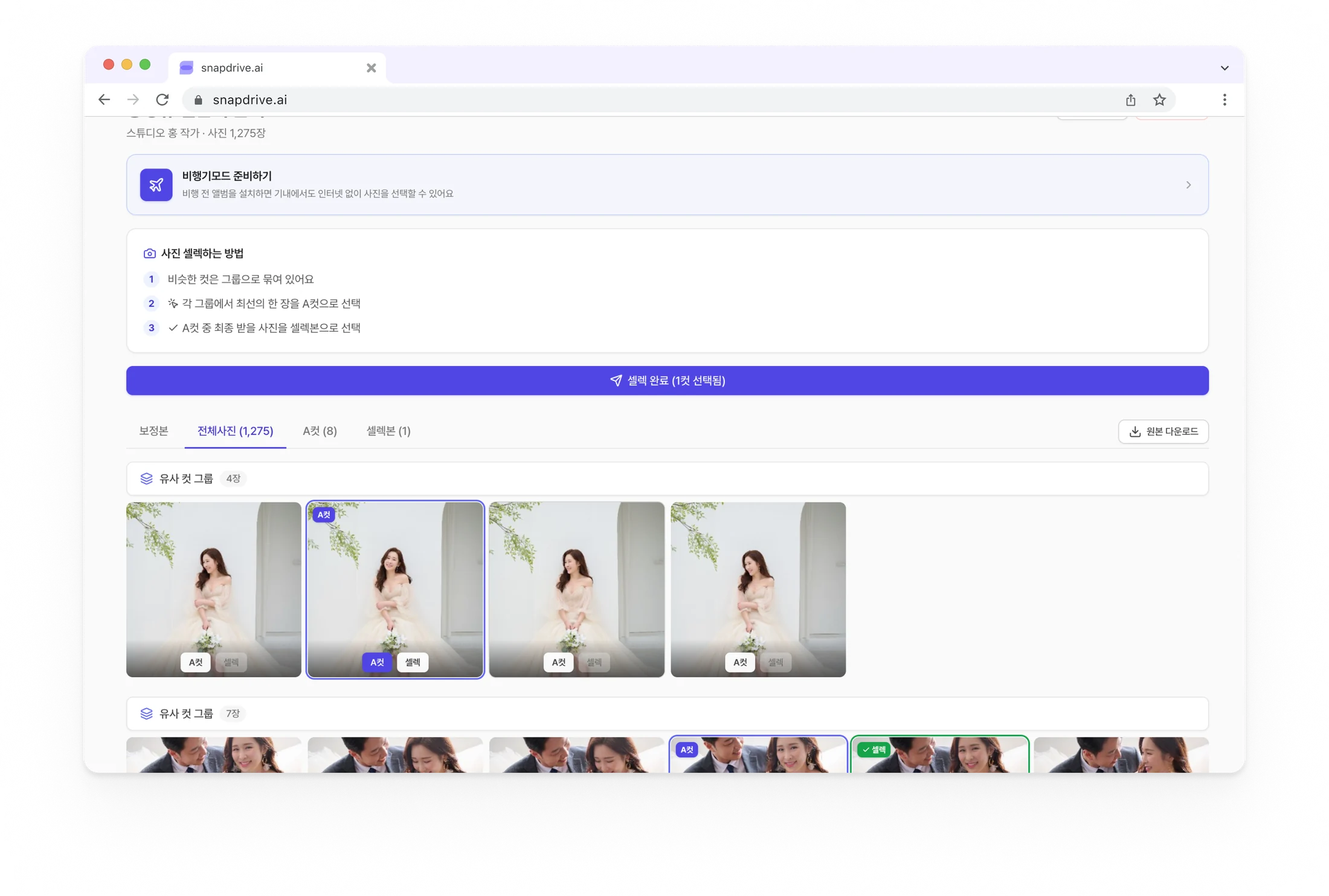
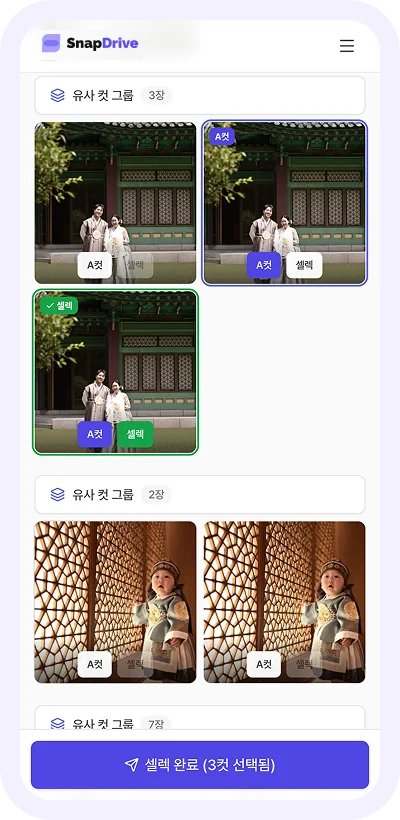
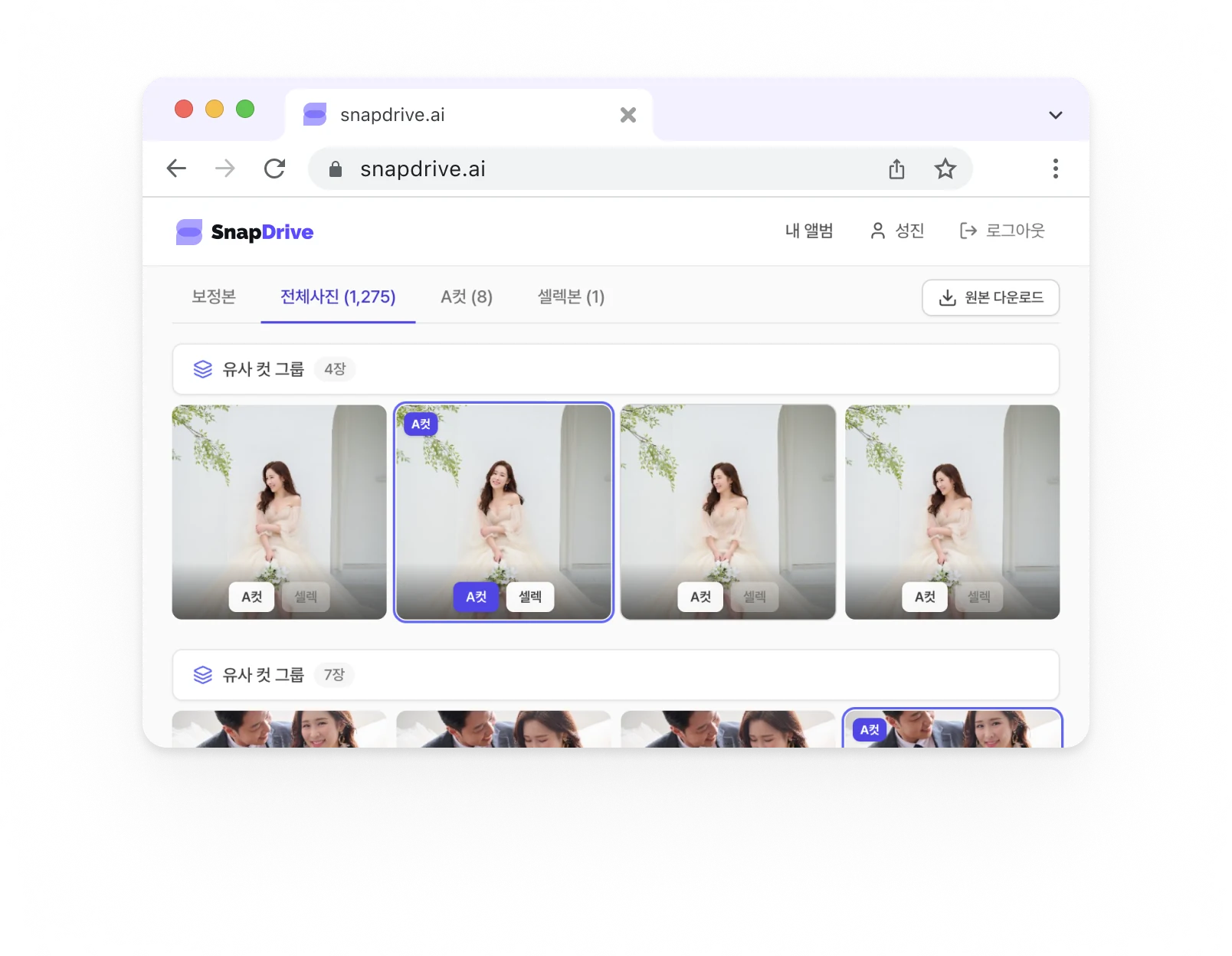
Group similar scenes together and keep only the shots you love.

Take a look with sample photos first.

Upload complete1,275 photos are ready.
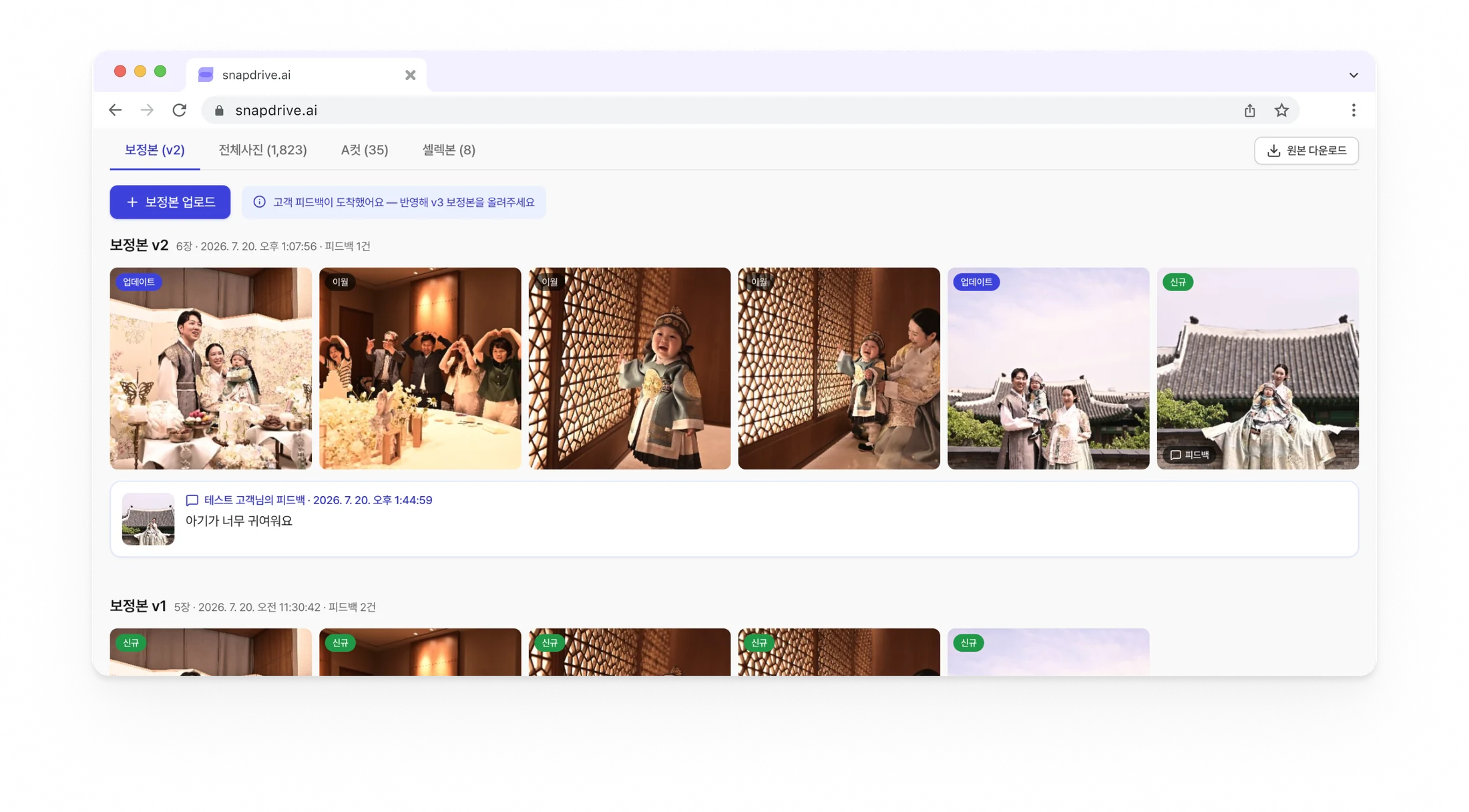
A new album arrivedYour photographer sent the photos.
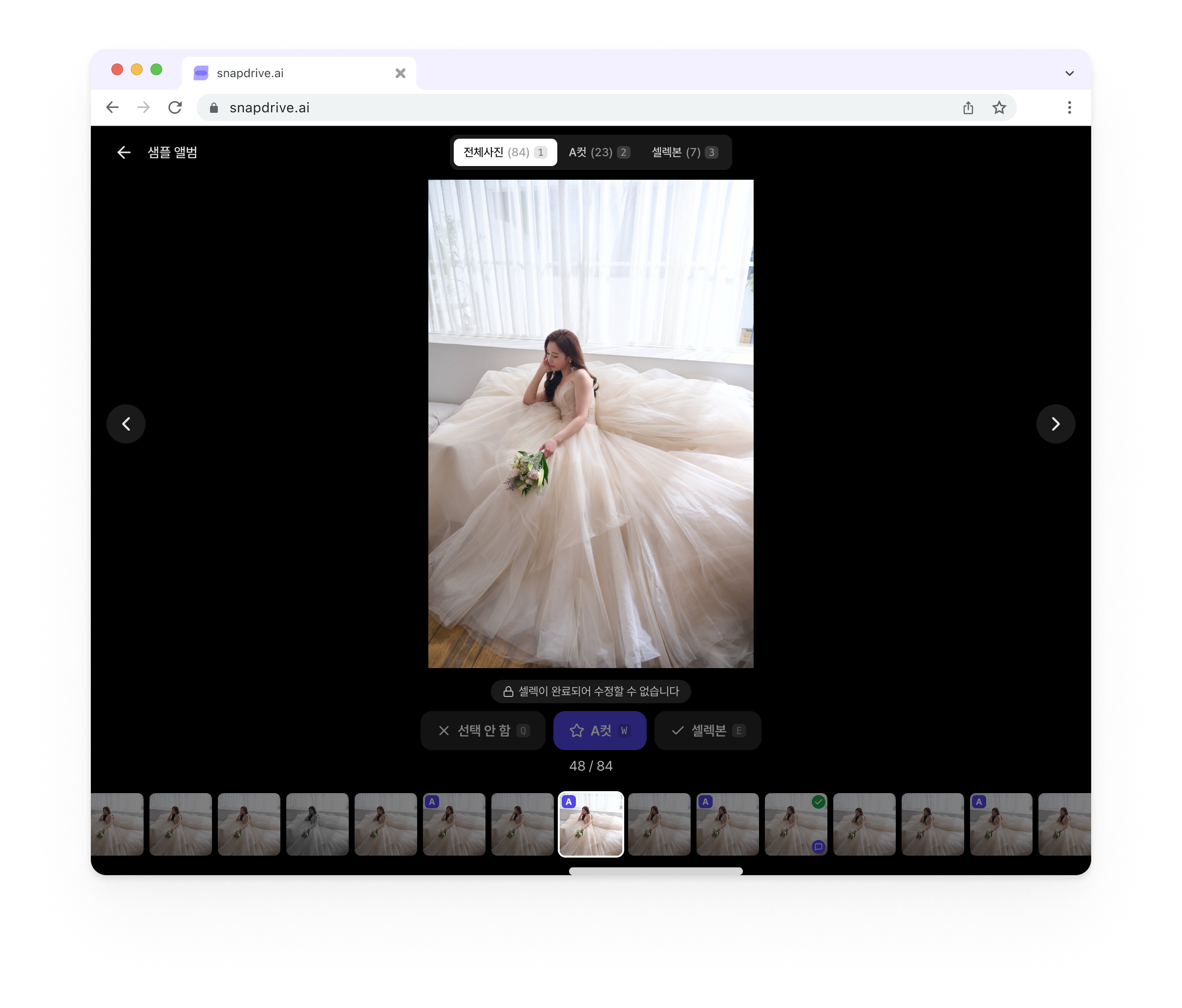
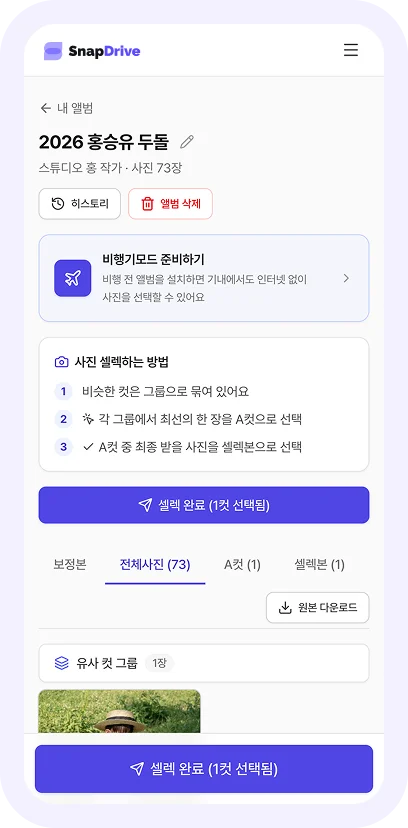
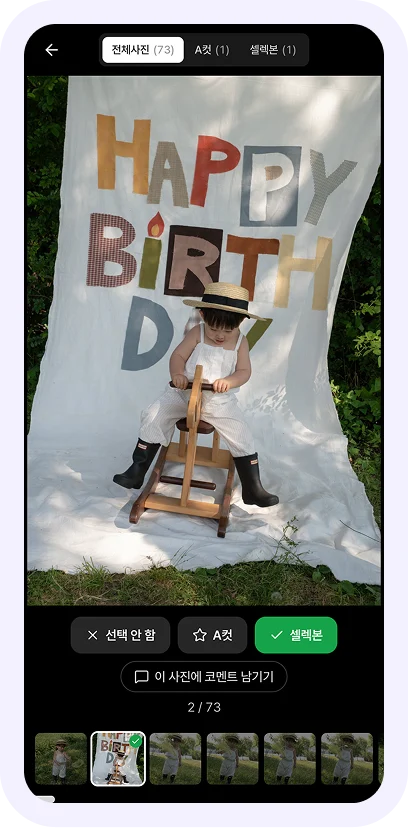
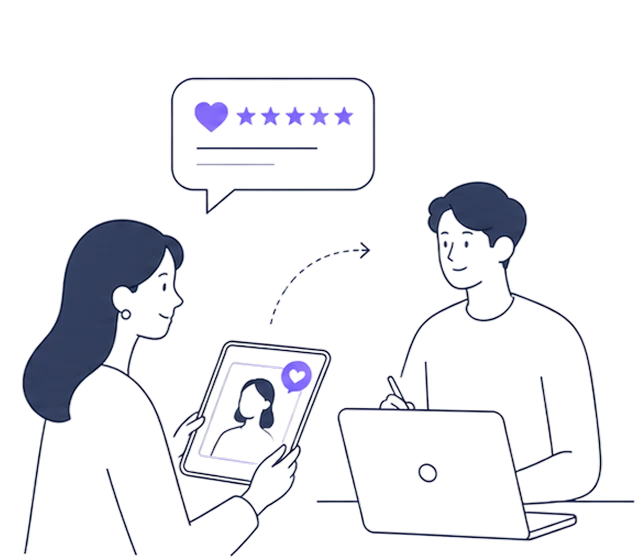
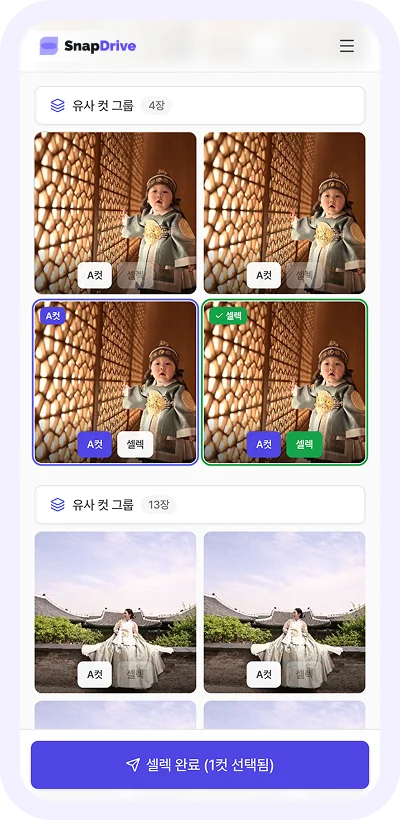
SnapDrive screens for uploading your own photosComparing and choosing similar photos in a browserChoosing photos on a mobile screenA client happily choosing photos on a tablet
  • Upload your own photos
  • Open received albums instantly
  • Gallery view
  • Right in your phone browser
  • Upload a whole folder at once
  • Automatic grouping of similar shots
  • Simple A-cut picking
  • Final selections organized at once
  • Your picks are saved automatically
  • Offline selection

Creating your first album
only takes a few minutes.

Upload your own photos or open an album you received, and start selecting right now.

Start on your own

I have the photo files

Upload an entire shoot folder and similar scenes are grouped automatically. Even hundreds of photos become easy to compare and choose.

For 2,000 photosFar faster than a typical cloud uploadabout 8 min
  • Upload right after signing up
  • Duplicate files excluded automatically
  • Queue the next album while one is uploading
  • Final picks and comments are organized and emailed to your photographer

Upload my photos
Start from an album

I received a SnapDrive album

Open the album link your photographer emailed you. Select right in the browser — no download required.

  • Start straight from the link you received
  • Works on desktop and mobile
  • Share the results with your photographer
Open the album I received

Wherever your files live,
you should not compare hundreds one by one.

  1. 01Compare photos across several folders
  2. 02Write down the file numbers you like
  3. 03Copy the chosen photos into a new folder
  4. 04Re-check for missing and duplicate files
  5. 05Tidy up the number list and send it again
A client puzzling over photo files tangled across folders

Compare at a glance,
and keep only what you love.

  1. 01Prepare photos

    Upload your own or open a received album.

  2. 02Compare similar shots

    Similar scenes line up side by side.

  3. 03Pick the A-cut

    Choose the best photo in each scene.

  4. 04Review final picks

    See everything you selected in one place.

Comparing similar shots and choosing A-cuts and final selectionsPreviewing the selected photos as a gallery

Even without internet,
selection continues.

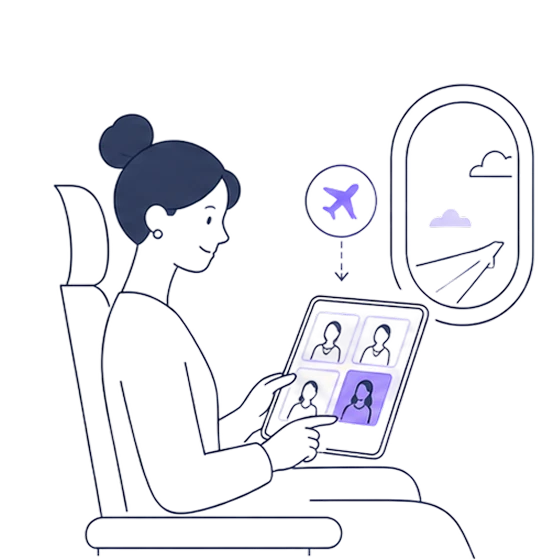
Prepare the album on your phone before you leave,
and keep choosing photos on a plane or on the move.
Your picks sync automatically once you are back online.

A client choosing photos on a tablet on a plane
Airplane mode preparation screenOffline photo selection screenFull-screen mobile photo viewer

Before you start,
the things you may wonder.

You can start right away with your own photo files or with an album you received.

  1. 01

    Can I use SnapDrive without receiving an album?

    Yes. Sign up as a client and upload your own photos to start selecting. It is fine if your photographer does not use SnapDrive.

  2. 02

    Is it free?

    Yes. We are in a beta period to validate the product experience, so you can start for free. We will give plenty of notice if the policy changes.

  3. 03

    How do I upload my own photos?

    Sign up as a client, create a new album, and upload an entire shoot folder. If you add another album during an upload, it continues in order.

  4. 04

    Where do I find the album my photographer sent?

    Open the album link in the email your photographer sent. If you already signed up, you can also continue from My albums after logging in.

  5. 05

    Do I need to install an app or special software?

    No. It runs directly in desktop and mobile browsers. Photos you uploaded and albums you received work exactly the same way.

  6. 06

    Are my own uploads grouped by similar scene too?

    Yes. Similar scenes in your uploads are grouped automatically so you can compare them one bundle at a time. Duplicate files are excluded automatically.

  7. 07

    Are my selections saved automatically?

    Yes. A-cuts and final picks are saved to the album automatically, so you can come back later and continue where you left off.

  8. 08

    What is the difference between an A-cut and a final pick?

    An A-cut is your favourite photo among similar scenes. A final pick is the photo you will actually use, chosen from the A-cuts.

  9. 09

    How do I send the results of my own uploads to a photographer?

    After selecting, enter the photographer's email and we send a message with the chosen file names and per-photo comments. The photographer can open the originals from the link in that email.

The photos you love —
start choosing them now.

Compare photos and keep only your favourites, without the complicated steps.

Works in desktop and mobile browsers with no app install.